
#8 物量表から重量単価[初期値]を推計/Estimating Initial Weight Unit Prices Based on the Input-Output Physical Table
 宮崎 稔也
宮崎 稔也An English translation of this article is provided at the bottom of the page.
司令塔となるブックを別途用意する
今回から、プログラムの操作や管理をメインとするLibreOffice Calcのブックを作成し、そこにマクロのプログラムに作成していこうと思います。
そのような”司令塔”となるブックを別途1つ用意する方式のほうが、複数ある転記元と転記先のブックをよりわかりやすく操作・管理できるでしょう。
立山秀利著『脱入門者のExcel VBA』(ブルーバックス、ISBN978-4-06-257962-9)より引用。
このブックの名前は「重量単価初期値データ整理.ods」で、そのブックにあるワークシートは「作業用」という名前のもの1つのみとします。マクロのプログラムをこのブック内に作成していきます。
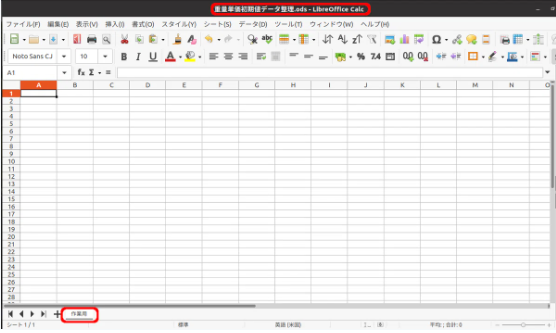
では、マクロの新規作成をしていきます。
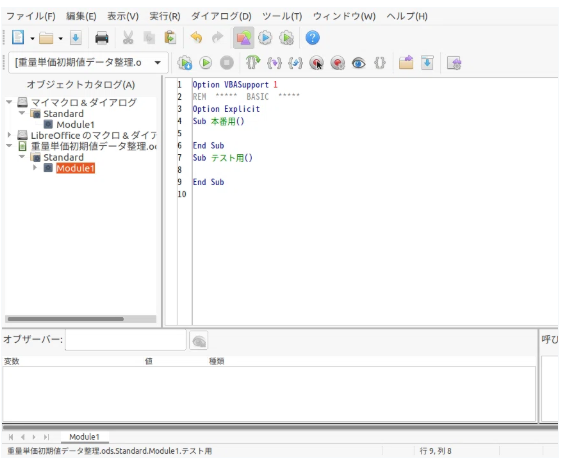
プログラムを書く準備を終えたら、以下のようになりました。
今回は、産業連関物量表(以下、「物量表」)のデータを整理していきます。
物量表は、ブック「butsuryou.xlsx」のワークシート「物量表」になります。こちらのワークシートをコピーし、名前を「物量表_org」(orgはoriginの略)としておいておきます。
そして、実際のデータ整理はワークシート「物量表」の方を使っていきます。
基本分類物量表の作成
ワークシート「物量表」は、以下のようにデータが記載されています。
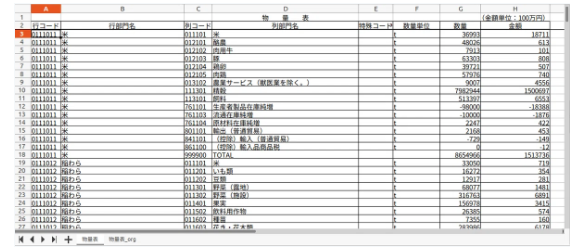
行部門ごとに、列コード999900(TOTAL)がある行に数量と金額のそれぞれの合計値が記載されています。また、数量単位の記載がないのに注意ですね。
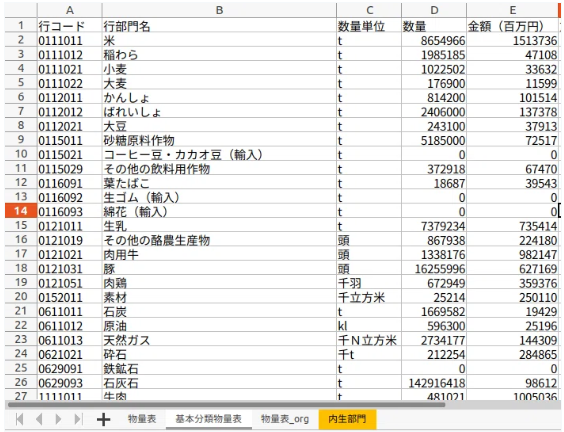
この行部門ごとに、列コード999900(TOTAL)がある行を、ワークシート「基本分類物量表」に転記していくプログラムを作成しました。
Sub テスト用()
    Dim wsOrg As Worksheet  ' 転記元ワークシート
    Dim wsDes As Worksheet  ' 転記先ワークシート
    Dim i As Long           ' カウンター変数
    Dim rw As Long          ' 行番号カウンター変数

    set wsOrg = Workbooks("butsuryo.xlsx").Worksheets("物量表")
    set wsDes = Workbooks("butsuryo.xlsx").Worksheets("基本分類物量表")
    rw = 2
    For i = 3 To Rows.Count
        If wsOrg.Cells(i, 3).Value = "999900" Then  ' TOTALにさし当たったときの処理
                wsDes.Cells(rw, 1).Value = wsOrg.Cells(i, 1).Value
                wsDes.Cells(rw, 2).Value = wsOrg.Cells(i, 2).Value
                wsDes.Cells(rw, 3).Value = wsOrg.Cells(i-1, 6).Value
                wsDes.Cells(rw, 4).Value = wsOrg.Cells(i, 7).Value
                wsDes.Cells(rw, 5).Value = wsOrg.Cells(i, 8).Value
                rw = rw + 1
        End If
    Next
End Sub
実行結果は以下のようになります。
結合小分類(185部門)でデータを整理
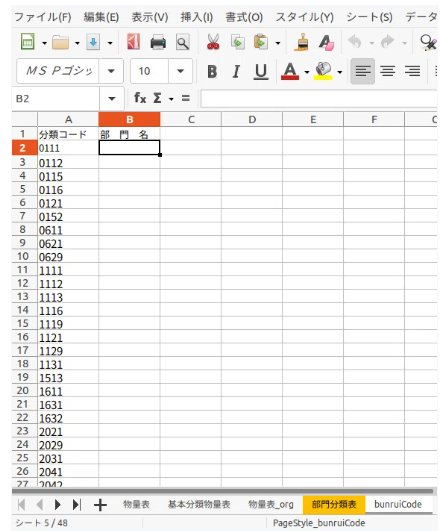
次に、ワークシート「基本分類物量表」に記載のある行コード7桁のうち、左から4桁が結合小分類の分類コードに該当するので、分類コードの一覧を作成します。
分類コード一覧は、ワークシート「bunruiCode」とします。
VBAプログラムは以下のようになります。
Sub テスト用()
    Dim bunruiCode As String
    Dim gyoCode As String
    Dim tmp As String
    Dim i As Long
    Dim rw As Long
    tmp = ""
    rw = 2
    For i = 2 To 115
        gyoCode = Workbooks("butsuryo.xlsx").Worksheets("基本分類物量表").Cells(i, 1).Value
        bunruiCode = Left(gyoCode, 4)
        If bunruiCode <> tmp Then
            Workbooks("butsuryo.xlsx").Worksheets("bunruiCode").Cells(rw, 1).Value = bunruiCode
            rw = rw + 1
            tmp = bunruiCode
        End If
    Next
End Sub
実行結果は以下のようになります。
結合小分類ごとにワークシートを新規作成します。プログラムは以下のようになります。
Sub 本番用()
    Dim bunruiCode As String
    Dim wSheet As Worksheet
    Dim cnt As Integer
    For cnt = 2 To 44
        bunruiCode = Workbooks("butsuryo.xlsx").Worksheets("bunruiCode").Cells(cnt, 1).Value
        ' 最後尾にシートを追加
        Set wSheet = Workbooks("butsuryo.xlsx").Worksheets.Add(After:=Workbooks("butsuryo.xlsx").Worksheets(Worksheets.Count))
        ' シート名を変更
        wSheet.Name = bunruiCode
        ' 列名を入力
        wSheet.RANGE("A1").VALUE = "コード"
        wSheet.RANGE("B1").VALUE = "名称"
        wSheet.RANGE("C1").VALUE = "単位"
        wSheet.RANGE("D1").VALUE = "生産数量"
        wSheet.RANGE("E1").VALUE = "単価(円)"
        wSheet.RANGE("F1").VALUE = "生産額(百万円)"
    Next
End Sub
それでは、基本分類物量表のデータを、結合小分類毎のワークシートに転記するプログラムを書いていきます
Sub 本番用()
    Dim bunruiCode As String
    Dim wb As Workbook
    Dim wsOrg As Worksheet
    Dim i As Long
    Dim j As Long
    Dim rw As Long

    Set wb = Workbooks("butsuryo.xlsx")
    Set wsOrg = wb.Worksheets("基本分類物量表")
    For i = 2 To 44
        bunruiCode = wb.Worksheets("bunruiCode").Cells(i, 1)
        rw = 2
        For j = 2 To 115
            If wsOrg.Cells(j, 1).Value Like bunruiCode & "*" Then
                wb.Worksheets(bunruiCode).Cells(rw, 1).Value = wsOrg.Cells(j, 1).Value
                wb.Worksheets(bunruiCode).Cells(rw, 2).Value = wsOrg.Cells(j, 2).Value
                wb.Worksheets(bunruiCode).Cells(rw, 3).Value = wsOrg.Cells(j, 3).Value
                wb.Worksheets(bunruiCode).Cells(rw, 4).Value = wsOrg.Cells(j, 4).Value
                wb.Worksheets(bunruiCode).Cells(rw, 6).Value = wsOrg.Cells(j, 5).Value
                rw = rw + 1
            End If
        Next
    Next
End Sub
実行結果を見ると…
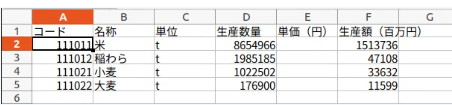
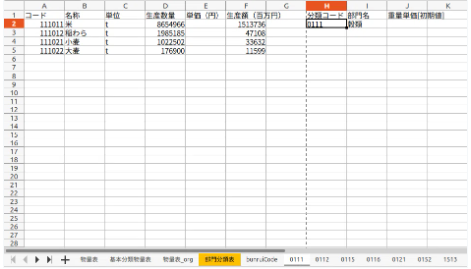
問題なく転記されました。その後、(途中経過は省略します)結合小分類毎のワークシートを以下のように整え、重量単価[初期値]を算出する用意ができました。
物量表に重量が記載されている品目の重量単価[初期値]の推計
物量表のデータを整理できたので、重量単価[初期値]を推計していきます。
まず、結合小分類のワークシートすべてに対して、産業内製品の生産単位が[t]の製品の重量と生産額を積み上げて、重量単価[初期値]を推計します。
つまり、先日投稿した、下記の1),2)の方法に則って推計を行っていきます。
1)産業内製品の生産単位が全て[t]または[g],[kg]の場合、[g],[kg]は[t]に変換して算出します。算出式は以下のようになります。
$$
Ux = Mx / Tx
$$
Ux : x産業の重量単価[円/t]
Mx : x産業の総生産額[円]
Tx : x産業の総生産量[t]2) 産業内製品の生産単位の一部が[t]または[g],[kg]の場合、その一部のみを用いて1)と同じように推計しました。
プログラムは以下のようになりました。
Sub 本番用()
    Dim bunruiCode As String
    Dim totalWeight As Double
    Dim totalPrice As Double
    Dim weightUnitPrice As Double
    Dim wb As Workbook
    Dim wsOrg As Worksheet
    Dim i As Long
    Dim j As Long

    Set wb = Workbooks("butsuryo.xlsx")
    Set wsOrg = wb.Worksheets("bunruiCode")
    For i = 2 To 44
        bunruiCode = wsOrg.Cells(i, 1).Value
        weightUnitPrice = 0
        totalWeight = 0
        totalPrice = 0
        For j = 2 To 300
            If wb.Worksheets(bunruiCode).Cells(j, 3).Value = "t" Then
                totalWeight = totalWeight + wb.Worksheets(bunruiCode).Cells(j, 4).Value
                totalPrice = totalPrice + wb.Worksheets(bunruiCode).Cells(j, 6).Value
            ElseIf wb.Worksheets(bunruiCode).Cells(j, 3).Value = "kg" Then
                totalWeight = totalWeight + wb.Worksheets(bunruiCode).Cells(j, 4).Value / 1000
                totalPrice = totalPrice + wb.Worksheets(bunruiCode).Cells(j, 6).Value
            ElseIf wb.Worksheets(bunruiCode).Cells(j, 3).Value = "g" Then
                totalWeight = totalWeight + wb.Worksheets(bunruiCode).Cells(j, 4).Value / 1000000
                totalPrice = totalPrice + wb.Worksheets(bunruiCode).Cells(j, 6).Value
            End If
        Next
        If totalWeight = 0 Then
                GoTo Continue
        End If
        weightUnitPrice = totalPrice * 1000000 / totalWeight
        wb.Worksheets(bunruiCode).Range("J2").NumberFormatLocal = "#,##0"
        wb.Worksheets(bunruiCode).Range("J2").Value = weightUnitPrice
    Continue:
        Next i
推計された各結合小分類の重量単価[初期値]を一つ一つ確認し、
- 問題がなければシートは、タブの色を緑色に、
- 検討が必要なシートは、タブの色を黄色に
- 重量単価[初期値]が空欄(生産単位が重量表示の製品が1つもない)シートは、タブの色を赤色に
それぞれ変更します。
単位換算を用いて重量単価[初期値]を推計
分類コード0152(部門名:素材)
分類コード0152(部門名:素材)について、以前投稿した単位変換の表に換算値がありました。
なので、「素材」については単位換算値(0.5[t/m3])を用いて、重量単価[初期値]を推計します。
分類コード1121(部門名:酒類)
酒類については、物量表では生産単位がklで記載されているので、ここでは、単位換算値を(先述の表にはありませんでしたが)1.0[t/kl]と仮定して重量単価[初期値]を推計しました。
これまでに算出した重量単価初期値を一覧にしてみた
部門別品目別国内生産額表(以下、「生産額表」と表記)と物量表それぞれから求めた、結合小分類(185部門)の重量単価初期値一覧は、以下のようになりました。
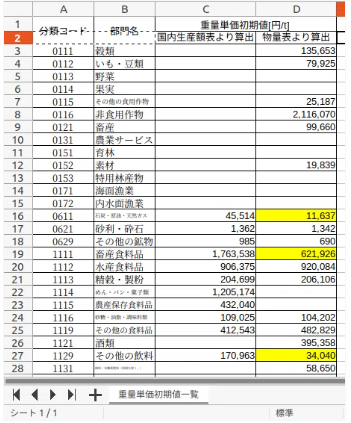
C列が国内生産額表より算出した重量単価[初期値]、D列が物量表より算出した重量単価[初期値]になります。
一部の部門では、C列・D列ともに値がありますが、それらは国内生産額表より算出した値を採用しようと考えています。
また、D列で検討が必要と判断した部門(黄色のセル)は、全てC列に値が算出されているので、検討が不要なのかなと考えます。
English Translation Part is Here.
Preparing a Separate "Control Tower" Workbook
From this point forward, I’ve decided to create a dedicated LibreOffice Calc workbook to serve as the main interface for managing and running my programs. This is where I will write my macro code.
"Using a separate 'Control Tower' workbook makes it much easier to manage and operate multiple source and destination workbooks clearly."
— Quoted from "Excel VBA for Beyond-Beginners" by Hidetoshi Tateyama (Blue Backs, ISBN 978-4-06-257962-9).
I’ve named this workbook Weight_Unit_Price_Data_Organization.ods. It contains a single worksheet named "Workspace." All macro programs will be stored within this file.
Now, I’ll start creating the new macros. Once the setup for coding was complete, it looked like this:
This time, I will be organizing data from the "Input-Output Physical Table" (hereafter referred to as the "Physical Table").
The Physical Table is located in the "Physical_Table" worksheet of the butsuryou.xlsx workbook. I’ve made a copy of this sheet and named it Physical_Table_org (where "org" stands for origin) to keep it as a backup. The actual data processing will be done on the "Physical_Table" sheet.
Creating the Basic Classification Physical Table
The "Physical_Table" worksheet contains data in the following format:
For each row sector, the total quantity and total value are recorded in the row where the column code is "999900" (TOTAL). One thing to note is that the units for quantity are not explicitly listed in these rows.
I wrote a program to transfer these "TOTAL" rows for each sector to a new worksheet called "Basic_Classification_Physical_Table."
Sub Test()
    Dim wsOrg As Worksheet  ' Source worksheet
    Dim wsDes As Worksheet  ' Destination worksheet
    Dim i As Long           ' Counter variable
    Dim rw As Long          ' Row index counter

    Set wsOrg = Workbooks("butsuryo.xlsx").Worksheets("Physical_Table")
    Set wsDes = Workbooks("butsuryo.xlsx").Worksheets("Basic_Classification_Physical_Table")
    rw = 2
    For i = 3 To Rows.Count
        ' Process when hitting the TOTAL row
        If wsOrg.Cells(i, 3).Value = "999900" Then
                wsDes.Cells(rw, 1).Value = wsOrg.Cells(i, 1).Value
                wsDes.Cells(rw, 2).Value = wsOrg.Cells(i, 2).Value
                ' Unit is taken from one row above the TOTAL
                wsDes.Cells(rw, 3).Value = wsOrg.Cells(i-1, 6).Value
                wsDes.Cells(rw, 4).Value = wsOrg.Cells(i, 7).Value
                wsDes.Cells(rw, 5).Value = wsOrg.Cells(i, 8).Value
                rw = rw + 1
        End If
    Next
End Sub
The result of the execution is shown below:
Organizing Data by Combined Small Classification (185 Sectors)
Next, since the first four digits of the 7-digit row codes in the "Basic Classification Physical Table" correspond to the codes for the Combined Small Classification, I will create a list of these classification codes.
I named the worksheet for this list bunruiCode.
The VBA program is as follows:
Sub test
    Dim bunruiCode As String
    Dim gyoCode As String
    Dim tmp As String
    Dim i As Long
    Dim rw As Long
    tmp = ""
    rw = 2
    For i = 2 To 115
        gyoCode = Workbooks("butsuryo.xlsx").Worksheets("Basic_Classification_Physical_Table").Cells(i, 1).Value
        bunruiCode = Left(gyoCode, 4)
        If bunruiCode <> tmp Then
            Workbooks("butsuryo.xlsx").Worksheets("bunruiCode").Cells(rw, 1).Value = bunruiCode
            rw = rw + 1
            tmp = bunruiCode
        End If
    Next
End Sub
After generating the codes, I created a new worksheet for each classification. Here is the program:
Sub Production()
    Dim bunruiCode As String
    Dim wSheet As Worksheet
    Dim cnt As Integer
    For cnt = 2 To 44
        bunruiCode = Workbooks("butsuryo.xlsx").Worksheets("bunruiCode").Cells(cnt, 1).Value
        ' Add sheet at the end
        Set wSheet = Workbooks("butsuryo.xlsx").Worksheets.Add(After:=Workbooks("butsuryo.xlsx").Worksheets(Workbooks("butsuryo.xlsx").Worksheets.Count))
        wSheet.Name = bunruiCode
        ' Input headers
        wSheet.RANGE("A1").VALUE = "Code"
        wSheet.RANGE("B1").VALUE = "Name"
        wSheet.RANGE("C1").VALUE = "Unit"
        wSheet.RANGE("D1").VALUE = "Production Quantity"
        wSheet.RANGE("E1").VALUE = "Unit Price (Yen)"
        wSheet.RANGE("F1").VALUE = "Production Value (Million Yen)"
    Next
End Sub
Now, I will write a program to transfer the data from the Basic Classification Physical Table to these individual sector worksheets.
The data was transferred without issues. After some further adjustments (details omitted), the worksheets for each classification are now ready for calculating the [initial] weight unit price.
Estimating Initial Weight Unit Price for Items with Recorded Weights
Now that the physical table data is organized, I will begin estimating the initial weight unit prices. For each sector worksheet, I will aggregate the weight and production value of products whose units are in [t], using the same Methods (1) and (2) mentioned in my previous post.
$$Ux = Mx / Tx$$
After running the estimation program, I inspected each initial value:
- Green Tab: No issues found.
- Yellow Tab: Requires further review.
- Red Tab: Initial value is blank (no products with weight-based units).
Estimating via Unit Conversion
Sector Code 0152 (Materials)
For "Materials," I found a conversion factor in the table I posted previously. I estimated the price using a conversion factor of 0.5 [t/m3].
Sector Code 1121 (Beverages/Liquor)
In the physical table, alcoholic beverages are recorded in [kl]. I estimated the initial weight unit price assuming a conversion factor of 1.0 [t/kl].
Summary of Calculated Initial Weight Unit Prices
I’ve compiled a list of initial weight unit prices for the 185 sectors, derived from both the "Production Value Table" (by sector and item) and the "Physical Table."
- Column C: Initial weight unit price calculated from the Production Value Table.
- Column D: Initial weight unit price calculated from the Physical Table.
In sectors where values exist in both columns, I plan to adopt the values from Column C. Additionally, all sectors marked as "requiring review" (yellow cells) in Column D already have values calculated in Column C, so further review of Column D may not be necessary.
Follow me!

―単位換算値を用いて再計算―-300x169.png)